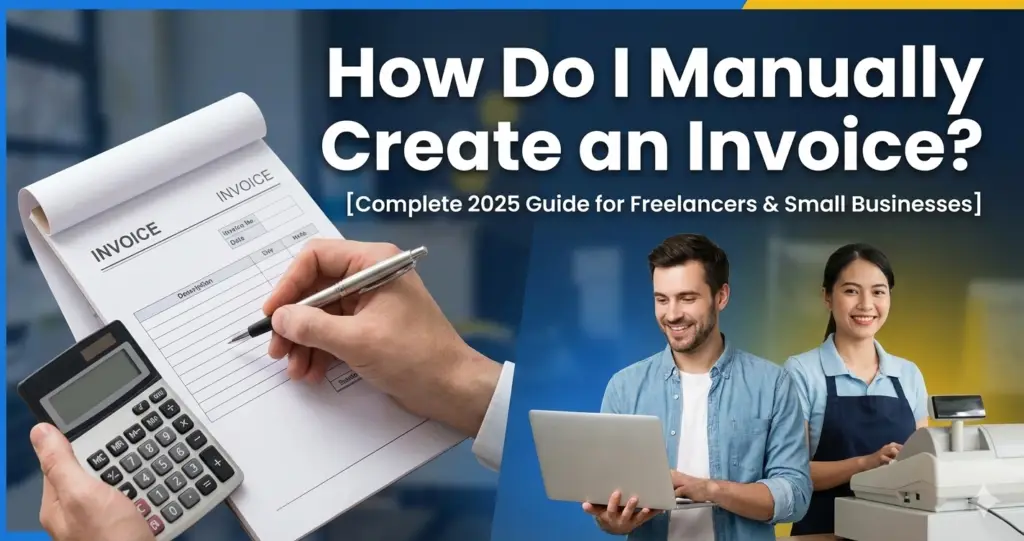
When you’re just starting your business or working as a freelancer, it’s common to create invoices manually. How Do I Manually Create an Invoice? Whether you’re sending a bill for a product or service, invoices are essential for tracking payments, organizing business finances, and looking professional in front of your clients.
But here’s the good news — you don’t need accounting software to create an invoice.
In this guide, we’ll walk you through everything you need to know to create an invoice manually — whether you use a notebook, Microsoft Word, Google Docs, or an online tool like MyInvoiceCreator.com.
Let’s dive into the full process.
✅ What Is an Invoice? How Do I Manually Create an Invoice?
An invoice is a formal document that lists goods or services provided by a seller to a buyer and includes the payment amount, due date, and other terms. It serves as a payment request and a record of sale.
Every time you sell a product, offer a service, or complete a project, you should issue an invoice. It’s a professional way of asking for payment and maintaining transparency between you and your client.
📌 When Should You Create an Invoice?
You should create an invoice:
- After completing a job or delivering a product
- If the client requires documentation for accounts or tax
- For upfront deposits or recurring billing
- When working with corporate or international clients
No matter the size of your business, a proper invoice makes a big impression.

🛠 How to Manually Create an Invoice – Step by Step
Creating an invoice manually is straightforward if you follow a simple structure. You can use:
- A pen and paper
- Microsoft Word or Excel
- Google Docs or Sheets
- PDF invoice templates
- Or better yet, a free tool like MyInvoiceCreator.com
Here’s the manual method explained in detail:
✍️ Step 1: Add Your Business Information
At the top of your invoice, clearly list your:
- Business Name
- Full Address
- Phone Number
- Email Address
- Logo (optional, but recommended)
This lets the client know who the invoice is coming from and adds a professional touch.
👤 Step 2: Add Client Information
Next, provide details about the recipient:
- Client’s Name or Company Name
- Billing Address
- Contact Email or Phone Number
Always double-check spelling and accuracy, especially when invoicing a new client.
🔢 Step 3: Include Invoice Number and Date
Each invoice must have a unique invoice number to help you and the client track payments and records.
Example:
yamlCopyEditInvoice Number: INV-2025-001
Invoice Date: August 1, 2025
Due Date: August 15, 2025
Set the due date based on the agreed terms (Net 15, Net 30, or Due Upon Receipt).
📋 Step 4: Add Itemized List of Products/Services
Create a table or list with the following columns:
| Description | Quantity | Rate | Total |
|---|---|---|---|
| Logo Design | 1 | ₹5,000 | ₹5,000 |
| Website Banner | 2 | ₹1,000 | ₹2,000 |
This section should clearly describe what you are charging for.
💵 Step 5: Calculate Subtotal, Taxes, and Total
Under the itemized list, add:
- Subtotal
- Tax (e.g., 18% GST or VAT)
- Discounts (if any)
- Shipping Charges (optional)
Then show the Grand Total.
Example:
makefileCopyEditSubtotal: ₹7,000
Tax (18%): ₹1,260
Total: ₹8,260
🧾 Step 6: Mention Payment Terms
This is crucial and often overlooked.
Include:
- Accepted payment methods (Bank Transfer, UPI, PayPal, etc.)
- Account details or payment instructions
- Late payment policies or interest (if applicable)
Example:
Please make payment within 15 days of receipt. Late payments may incur a 2% fee.
📝 Step 7: Add Notes or Personal Message (Optional)
A short note helps humanize your invoice. Examples:
- “Thanks for your business!”
- “Let me know if you have any questions about this invoice.”
It’s polite and leaves a positive impression.
📤 Step 8: Save and Send
Once complete:
- Save your invoice as a PDF (recommended)
- Email it to your client using a clear subject line like:
“Invoice INV-2025-001 – [Your Business Name]”
If you’re working offline, you can print and mail it physically.
🧾 Example of a Manually Created Invoice
Your Business Name
123 Demo Street, Mumbai
hello@yourbusiness.com | +91-90000-00000
Invoice #: INV-2025-001
Date: August 1, 2025
Due Date: August 15, 2025
Bill To:
ABC Pvt. Ltd.
456 Client Road, Delhi
| Description | Quantity | Rate | Total |
|---|---|---|---|
| Logo Design | 1 | ₹5,000 | ₹5,000 |
| Website Banner | 2 | ₹1,000 | ₹2,000 |
Subtotal: ₹7,000
GST (18%): ₹1,260
Total: ₹8,260
Payment Instructions:
Bank: XYZ Bank
Account No: 123456789
IFSC: XYZB0000123
Thank you for your business!
💡 Pro Tip: Save Time with MyInvoiceCreator.com
While manually creating invoices works, it takes time and leaves room for error.
With MyInvoiceCreator.com, you can:
- Skip the formatting hassle
- Automatically calculate totals and taxes
- Instantly download your invoice as a clean PDF
- Send invoices via email without signing up
- Save invoice history in one click
📲 How to Use MyInvoiceCreator.com
- Open the site on your mobile or computer
- Fill out invoice fields (your info, client info, line items)
- Customize tax, currency, and discounts
- Click “Download PDF” — you’re done!
It’s free, fast, and perfect for freelancers, consultants, and small businesses.
📌 Manual Invoice Creation vs. Online Tools
| Feature | Manual Invoice | MyInvoiceCreator.com |
|---|---|---|
| Easy Formatting | ❌ No | ✅ Yes |
| Auto Calculations | ❌ No | ✅ Yes |
| Save/History Option | ❌ Not built-in | ✅ Yes |
| PDF Download | Depends | ✅ One-click |
| Mobile Compatibility | ❌ Limited | ✅ Full support |
| Setup or Login Required | ❌ No | ✅ No |
👤 Who Should Create Invoices Manually?
Manual invoices work best for:
- People who need one-time invoices
- Students learning invoice structure
- Offline businesses without access to tools
- Anyone who wants full customization
But if you want speed, consistency, and automation, using a tool like MyInvoiceCreator.com is far more efficient.
💬 Real User Feedback
“I started creating invoices in Word, but it took too long. MyInvoiceCreator.com helped me cut that time in half!”
— Kavita, Freelance Designer
“As a service provider, I love how I can send an invoice right after a job using my phone.”
— Arvind, Electrician
“The PDF looks so professional, and I didn’t even need to register!”
— Priya, Yoga Coach
🔐 Is Manual Invoicing Safe?
Yes, if you:
- Keep backups (PDF or printed)
- Use unique invoice numbers
- Store them securely for tax/reporting
For added safety, using an online platform like MyInvoiceCreator.com lets you save and track everything digitally — securely and automatically.
Frequently Asked Questions (FAQs)
Can I handwrite invoices?
Yes. It’s legal and acceptable, but make sure it includes all essential details and is easy to read.
Can I use Excel or Word for manual invoices?
Absolutely. You can even download templates or create your own layout.
Is it better to use an invoice generator?
For speed, accuracy, and a professional look — yes. Tools like MyInvoiceCreator.com make invoicing simple and error-free.
Do I need to charge GST or taxes?
That depends on your business type, location, and registration status. In India, businesses earning over ₹20L per year typically need to register for GST.
How can I track manual invoices?
Use a spreadsheet or number system (like INV-2025-001) to organize them. Or use MyInvoiceCreator.com which automatically saves your invoice history.
Final Thoughts
Learning how to manually create an invoice is an essential skill for any entrepreneur, freelancer, or small business owner. It helps you maintain clear financial records, encourages faster payments, and adds a professional touch to your services.
But if you’re tired of building every invoice from scratch, want to save time, and avoid calculation errors — use a tool that does it all for you.
👉 Try it now at MyInvoiceCreator.com
No logins. No subscriptions. Just professional invoices made easy.